 STREAMHUD
 The big picture
The dock has three parts. Everything you change is saved to your StreamHud account as you go, so the dock opens the same way on any computer you sign in on.
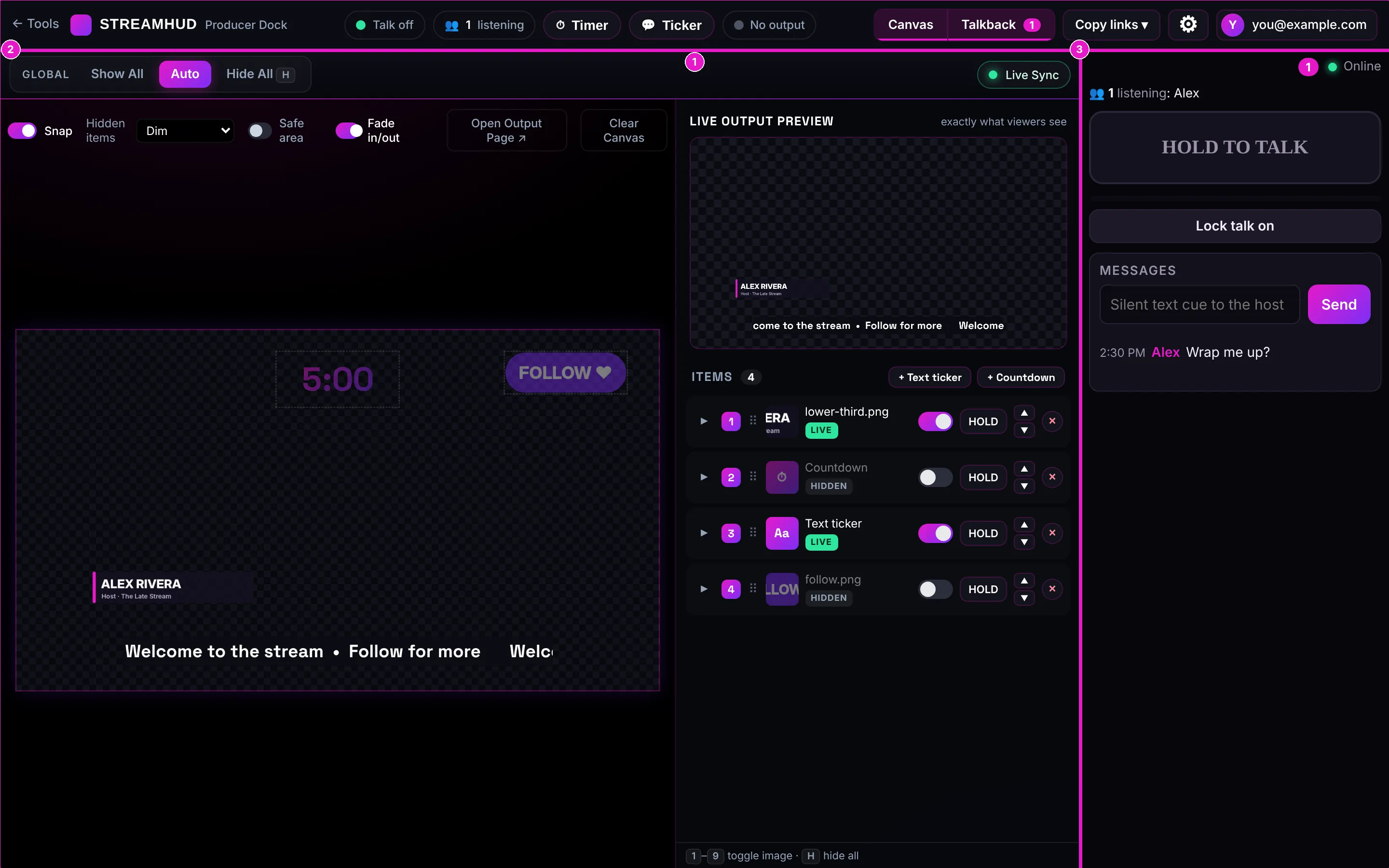
- 1The top barQuick status and controls you need mid-show: whether you're talking, who's listening, the countdown, the ticker, whether your stream has loaded your graphics, plus menus for links and settings.
- 2The canvas (Canvas View Pro)A 1920×1080 stage where you place images, scrolling text and a countdown. Nothing here reaches your stream until you switch it on. On the right of this panel is the live preview and your list of items.
- 3TalkbackYour line to the host's earbud. Hold to talk, see who's listening by name, and trade silent text messages. Viewers never hear or see any of it.
Two rooms sit behind the dock: a canvas (your graphics) and a talkback room (your host line). Rooms saved to your account never expire. You can switch either one from Dock settings.
Before you go live
A two-minute check that catches almost every problem before it reaches the stream:
- The top bar's output light says Output connected (green). If it says No output, your streaming app hasn't loaded your canvas yet. See Links for your stream.
- The canvas's Global control is on Auto, not Show All or Hide All.
- Everything you want on screen at the start shows LIVE in the items list, and everything else shows HIDDEN.
- Your host has opened their listener link, tapped Tap to start listening, and their name shows next to the 👥 count.
- Hold Space and say "can you hear me?". Their page lights up red while you talk, and they can reply with Got it.
- If you're counting down to the start, the countdown is set and its item is on (or Auto-show is ticked).
The top bar
The top bar stays put while you work. Each part is also a quick way in to something you'd otherwise scroll to.


- 1← ToolsBack to the StreamHud home page with all the tools.
- 2Talk lightShows Talk off while you're quiet and turns red with Talking while your voice is going to the host. If it says Talkback offline, the talkback panel lost its connection and is reconnecting by itself.
- 3👥 ListeningHow many people have your listener link open right now. Hover it to see their names.
- 4TimerShows your canvas's countdown as it runs. Click it for every countdown control without scrolling down to the item. See Timer and Ticker chips.
- 5TickerClick to see what your scrolling text says right now and swap it for a saved message mid-show.
- 6Output lightNo output means nothing has your canvas loaded. Output connected (green) means your streaming app has loaded it, and 2 outputs means two places have it (for example Restream and a test browser tab).
- 7Canvas | TalkbackShow or hide each panel. Hide Talkback to give the canvas the whole window, or hide the canvas when you're only talking. A small magenta number on Talkback means your host sent messages you haven't seen. It clears when you look at the messages.
- 8Copy linksCopies the two links you hand out: the Listener link for your host and the Canvas output link for Restream or OBS.
- 9⚙ Gear menuThis guide, Dock settings, your microphone, and Reset listener link. See The gear menu.
- 10AccountYour email, your saved talkback rooms, and Sign out.
The canvas
The canvas is a full 1920×1080 frame, exactly the size your stream shows it. You set things up here while they're hidden, then switch them on when it's time.
The canvas toolbar

- 1Global: Show All · Auto · Hide AllAuto is the normal mode: every item follows its own switch. Show All puts everything on screen at once, even items that are switched off. Hide All takes everything off screen at once, a panic button (H does the same, and pressing it again brings everything back). While Show All or Hide All is on, a magenta banner appears with a Switch to Auto button so you can't forget.
- 2Live SyncGreen means the canvas is connected and every change goes out instantly. If it turns orange, it's reconnecting. Your changes are kept and sent as soon as it's back.
- 3SnapWhile on, items you drag pull toward the canvas centre, its edges and the safe-area lines, and a bright guide line shows when they line up. Hold Cmd (Mac) or Ctrl (Windows) while dragging to turn it off for that one drag. Your choice is remembered.
- 4Hidden itemsHow switched-off items look in the dock only (your stream never shows them): Dim, Faint, or Outline only, which hides the picture and leaves just a dashed box showing where it sits. Items that are live are always at full brightness, so bright always means "on air". When you click an item, the other hidden items fade almost away so it's easy to see what you're working on.
- 5Safe areaShows the action-safe and title-safe guides used in TV, so text isn't cut off on screens that crop the edges. Items snap to them. Only you see these lines.
- 6Fade in/outOn: items fade in and out on your stream. Off: they cut on and off instantly.
- 7Open Output Page ↗Opens your stream's view of the canvas in a new tab, on a dark background so you can see it. Handy for checking, but that tab counts as a connected output while it's open.
- 8Clear CanvasRemoves every item from this canvas, after asking first. There's no undo, so it's for starting over.
Adding, moving, resizing and rotating
Add images by dragging PNG, JPEG, GIF or WebP files onto the canvas, or with Browse files on an empty canvas. Animated GIFs and WebPs keep animating. Each file can be up to 20 MB, and each one appears in the items list. Text tickers and countdowns are added from the items list.
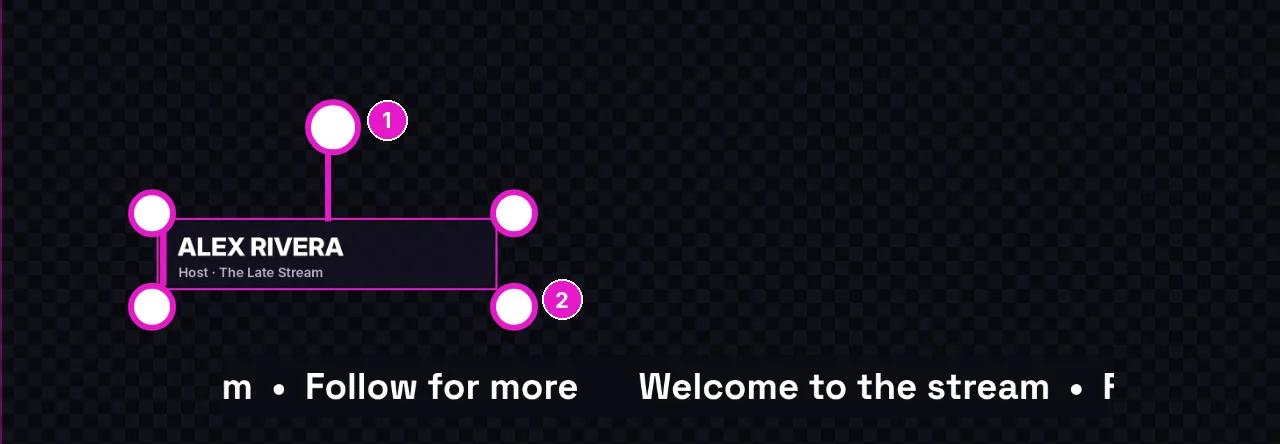
- 1Rotate knobDrag the round knob above a selected item to rotate it. Hold Shift for 15° steps, and double-click the knob to go back to 0°. You can also hold Option (Mac) or Alt (Windows) and drag anywhere inside the item to rotate it.
- 2Corner handlesDrag any corner to resize. The picture keeps its shape. Drag the middle of the item to move it. Text tickers also get a handle on each side, which is explained in Text tickers.
Click a layer on the canvas to select it. A locked layer can't be selected this way, and clicks go straight through it. See Lock a layer.
The items list
Next to the canvas are the Live output preview and your Items. Each row is one thing on the canvas, with its own controls.
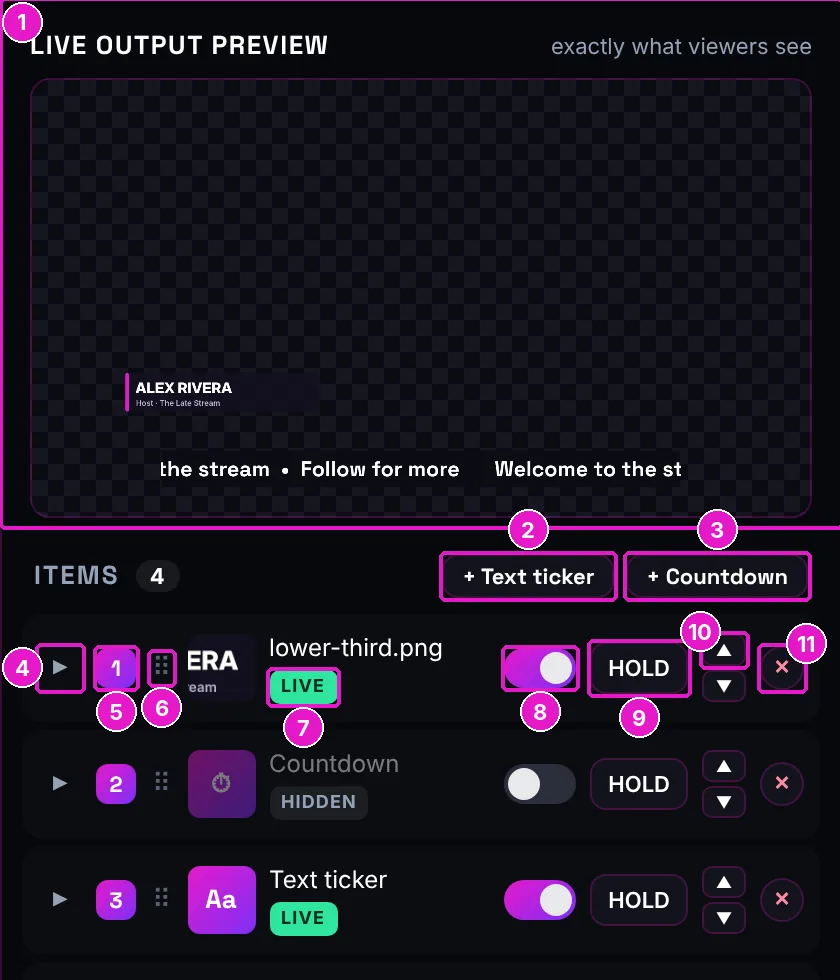
- 1Live output previewExactly what your viewers see right now, at the size and position your stream shows it. If it's not in this box, it's not on stream.
- 2+ Text tickerAdds a line of scrolling text (it starts hidden).
- 3+ CountdownAdds a countdown clock (it starts hidden, set to 5:00).
- 4▸ SettingsOpens this item's settings: rotation, scrolling, text, countdown options. See Item settings.
- 5NumberPress this number on your keyboard to switch the item on or off. The top nine rows get 1 to 9.
- 6⠿ Drag handleDrag the row up or down to change the order. Items higher in the list sit in front of items below them.
- 7LIVE / HIDDENWhat your stream is showing for this item right now. It accounts for Show All and Hide All, so trust this chip over the switch.
- 8SwitchOn puts the item on your stream (in Auto). Off takes it off.
- 9HOLDShows the item only while you hold the button down, like a flash cut, even if its switch is off. Let go and it's gone.
- 10▲ ▼Moves the item one layer forward or back, the same as dragging the row.
- 11×Deletes the item from the canvas.
Lock a layer
Each row also has a padlock between HOLD and the ▲ ▼ arrows. Lock a layer once it's positioned, so a stray click or drag can't move it while you're live.
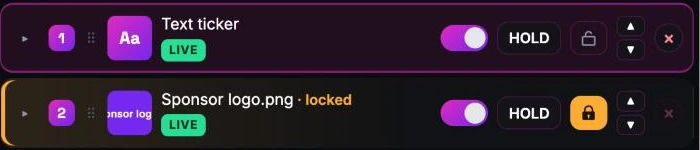
- What a locked layer can't do: be selected, dragged, resized, rotated or deleted. Clicks on the canvas pass straight through it to whatever is underneath, so you can still grab the items behind it.
- What still works: its switch, HOLD, its number key, Show All and Hide All. So you can run a layer live while it stays exactly where it is. You can still open its settings, reorder it and use ▲ ▼.
- Easy to see: unlocked is a grey outline padlock. Locked is a solid amber padlock, plus an amber stripe and a locked tag on the row.
- It stays in sync. The lock is saved with your canvas, so locking in the dock locks it in the editor and on any other computer, and the other way round. It never changes what viewers see.
Item settings
Click ▸ on any row to open its settings. Every item has Rotate °: type an exact angle, or press Reset for 0°. The rest depends on what the item is.
Images: scrolling like a ticker
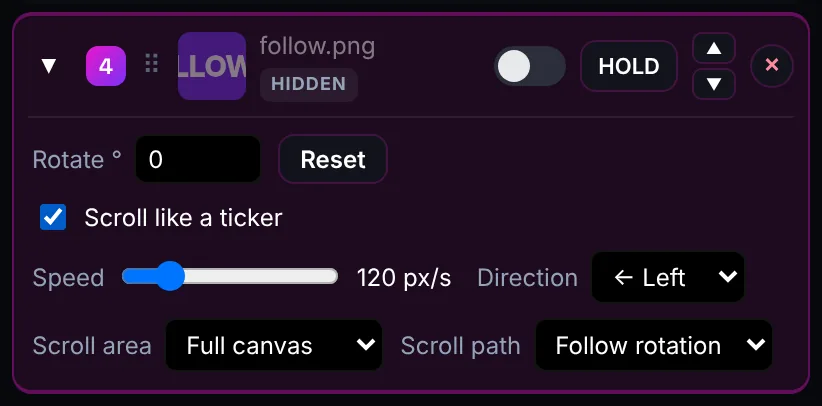
- Scroll like a ticker makes the image travel across the screen and loop with no gap, like a news crawl.
- Speed is in pixels per second. Around 100–150 is easy to read.
- Direction is Left or Right.
- Scroll area: Full canvas sends it from fully off one edge of the screen to fully off the other, at the height you placed it. This box only keeps the scrolling inside the item's own box, like a window.
- Scroll path (Full canvas only): Follow rotation sends a rotated item along its own angle, so a tilted banner travels on a slant. Straight across always travels flat.
In the dock, a faint moving copy shows the scroll while the real box stays still, so you can still grab and position it.
Text ticker
Everything about a ticker has its own section: Text tickers, just below the countdown.
Countdown
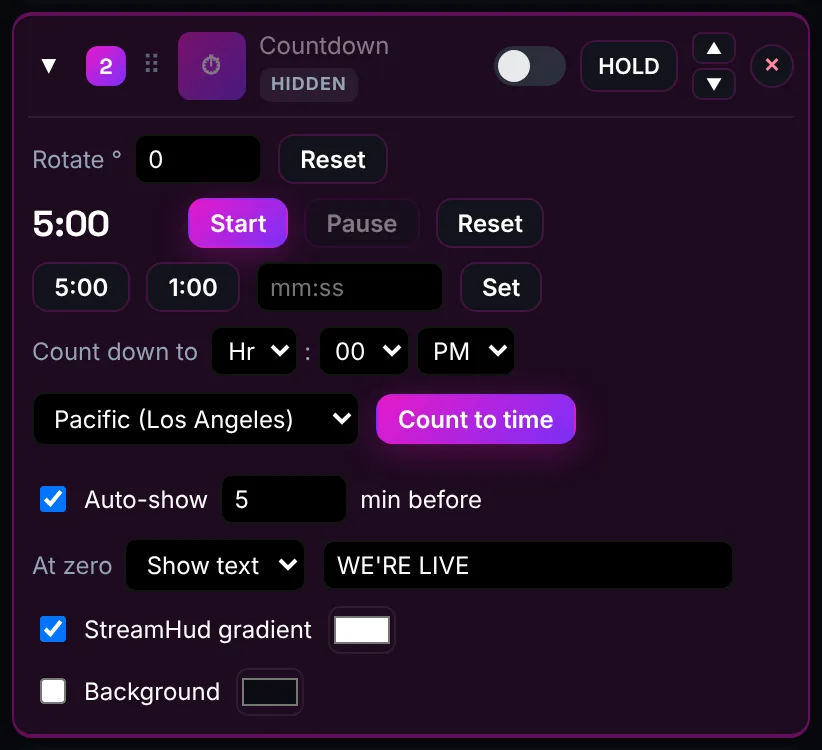
- Start, Pause (keeps the time left) and Reset (stops and goes back to the set length).
- 5:00 and 1:00 set those lengths. Or type your own in the box, like 3:30, 1:00:00, or just minutes (10), and press Set.
- Count down to a clock time instead: pick the hour, minute, AM/PM and time zone, then press Count to time. If that time has already passed today, it counts to tomorrow. Handy for "show starts at 7:00 PM Pacific".
- Auto-show switches the countdown on by itself the chosen number of minutes before the target time, so it appears on stream without you touching it.
- At zero: Show text (default WE'RE LIVE, change it in the box) or Hide to take the clock off screen.
- StreamHud gradient colours the numbers pink-to-purple. Untick it to use the plain colour in the box next to it. Font picks the typeface (see Fonts). Background adds a solid colour behind the clock.
The countdown keeps time on the server, so every screen shows the same number, even one that loads halfway through. Your host's listener page shows it too.
Text tickers
A text ticker is a line of text on your stream: a news crawl, a sponsor line, a name or a hashtag. Press + Text ticker in the items list to add one (it starts hidden), then click ▸ to open its settings.
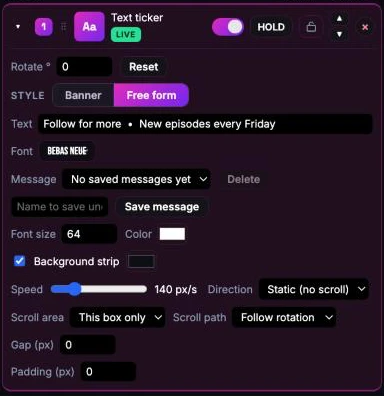
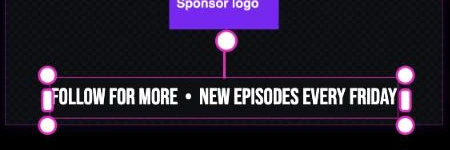
- Style is the Banner | Free form switch at the top. Read Banner or Free form? first, because it decides how the box and the handles behave.
- Text is the line itself. Edits show on stream as you type, and every space you type is kept, so you can make your own gaps.
- Font opens the font list (see Fonts).
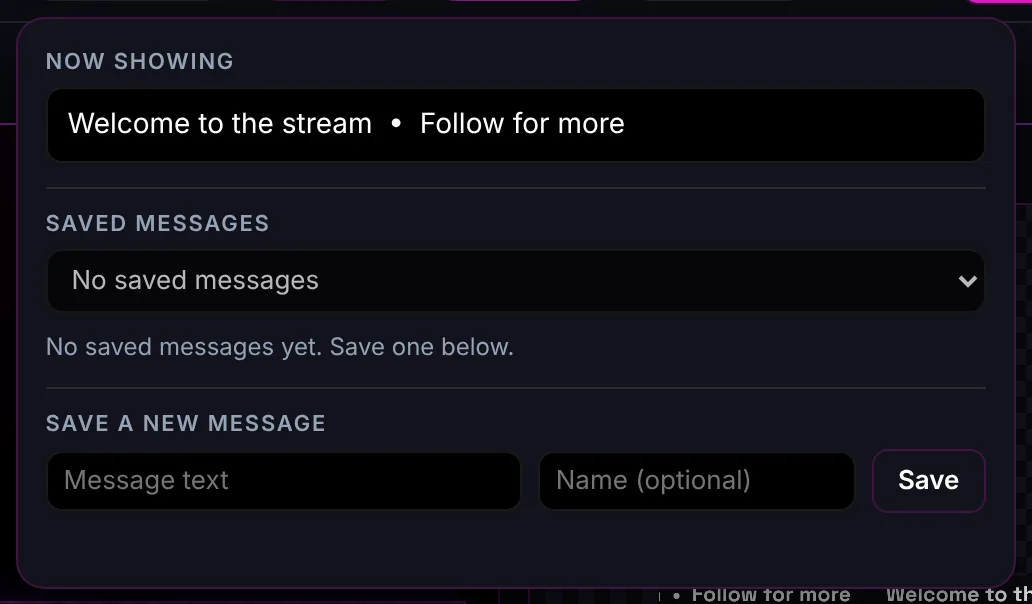
- Message and Save message: give the current text a name and save it to your saved messages. Saved messages belong to the whole canvas, so every ticker on it (and the Ticker chip) can switch to them. Delete removes the selected one from the list.
- Font size is in canvas pixels (the full frame is 1920 wide). Color sets the text colour.
- Background strip puts a solid band behind the text so it's readable over busy video. Pick its colour next to it.
- Speed, Direction, Scroll area, Scroll path, Gap and Padding are explained in Scrolling, Gap and Padding.
Banner or Free form?
The switch at the top of a ticker's settings picks how its box works. You can change it any time, even while the ticker is live.
| Banner | Free form | |
|---|---|---|
| Use it for | A strip across the screen: a news crawl, a sponsor line, a score bar. | A label that hugs its words: a name, "LIVE NOW", a hashtag, a lower third. |
| The box | A window you size yourself. It keeps that size whatever the text says. | Always exactly as wide as the text (plus Padding). It grows and shrinks as you type or change the font or size. |
| Corner handles | Scale the whole ticker, box and text together. | Scale the text. The box follows it. |
| Side handles | Change the window's width only. The text size stays. | Add or remove padding on both sides of the text. |
| Long text | Scrolls through the window and is clipped at its left and right edges. | The box grows to fit, so nothing is ever cut off. |
| Gap starts at | The classic spacing between repeats (about 1.6 × the font size). | 0, so the text comes straight back round. |
- Switching keeps what you see. Free form to Banner keeps the box and the text size exactly as they are on screen. Banner to Free form keeps the text size and refits the box to the text. The scroll carries on from where it was instead of jumping back to the start.
- New tickers start in the style you used last on this canvas (remembered in this browser). The very first one is Free form. Tickers saved before this switch existed open as Free form, and nothing about them changes until you switch.
- It's saved with the canvas, so the dock, the editor and your stream all agree.
Scrolling, Gap and Padding
- Direction: Left or Right scrolls the text. Static keeps it still, centred in its box.
- Scroll area: Full canvas slides the whole box across the screen, from fully off one edge to fully off the other, then starts again. In Free form the box is exactly as wide as the text, so there's no empty stretch before it comes back. Scroll path picks Follow rotation or Straight across, as for images.
- Scroll area: This box only keeps the box where you put it and scrolls the text through it, clipped at the box's edges. In Banner, copies of the text run through the window one after another. In Free form, one copy crosses the part of the box that's on the canvas, and the next one starts as soon as the last has fully left. A box dragged half off the canvas only counts its visible half, so there's no waiting while the text crosses the part nobody sees.
- Gap (px) is the empty space before the text comes round again. 0 means it re-enters the moment it has fully left, with no blank stretch. Type a bigger number for a pause. In a Banner the field starts at the classic spacing and follows the font size until you set your own number.
- Padding (px) (Free form, when the box fits the text) is the space between the text and the left and right edge of the box. Set it here or drag a side handle.
- Speed is in pixels per second. Around 100–150 is easy to read, and 45 is a slow crawl.
The scroll keeps its place when you change the size, font, text, speed or direction, and every screen shows the same position, your stream included.
Fonts
Text tickers and countdowns have a Font drop-down with 25 Google Fonts: clean sans, bold display, condensed, serif, and a few fun and retro ones. Every name is drawn in its own typeface, so you can see what you're picking before you pick it.
- The choice is saved with the item, so it survives reloads and shows up in the dock, the editor and on stream.
- Your stream's output page loads the font itself, so it looks the same in Restream and OBS. If a font can't be fetched (for example with no internet), the text uses the default font until it can.
- Wide fonts and big sizes make the text longer. In Free form the box grows to fit. In a Banner, make the window wider with a side handle.
Timer and Ticker chips
The Timer and Ticker chips in the top bar control your canvas's countdown and ticker without opening their rows.
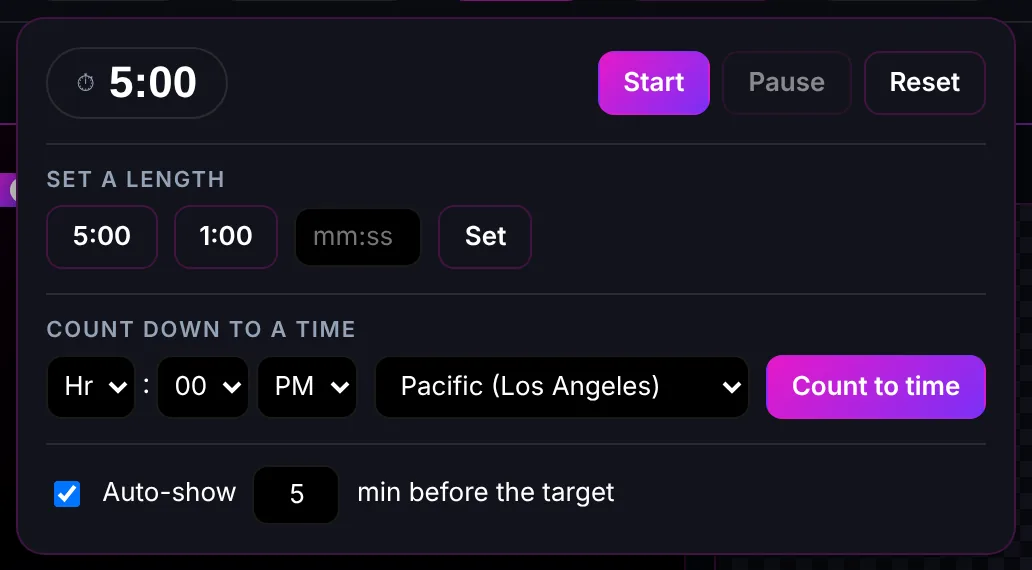
- Timer: Start, Pause and Reset, the 5:00 and 1:00 presets, a custom length, Count to time with a time zone, and Auto-show. If the canvas has no countdown yet, it offers Add countdown. If it has more than one, pick which one at the top.
- Ticker: Now showing is the text scrolling right now. Choose any saved message to switch to it instantly. Type in Save a new message (with an optional name) to add it to the list. If the canvas has no ticker yet, picking a message creates one (hidden until you switch it on).
Click anywhere else or press Esc to close them.
Talkback
Talkback is a private voice line from you to your host's earbud, with a text back-channel. It never touches your stream: viewers can't hear it, and it works next to Restream, StreamYard, OBS, Kick, or anything else.
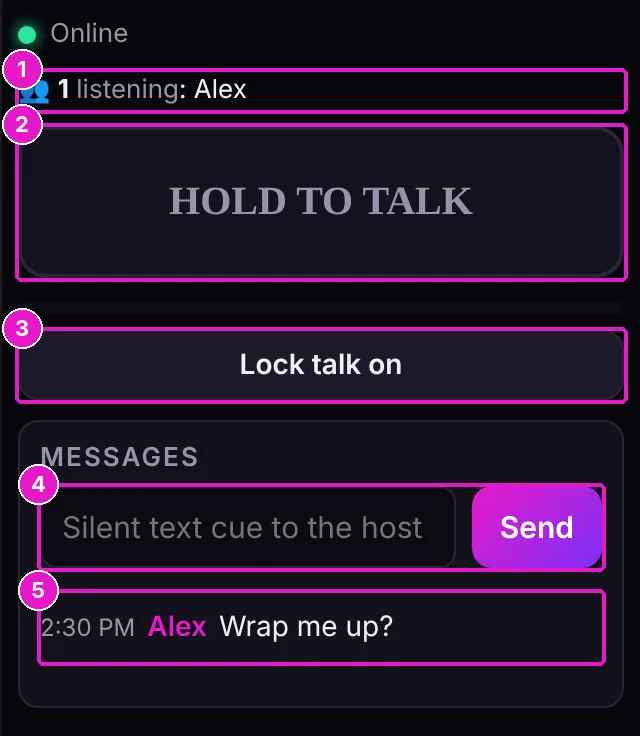
- 1Who's listeningThe number of people on your listener link and their names. Names update the moment someone joins, leaves, or changes their name.
- 2HOLD TO TALKPress and hold to talk. Let go and you're off. Easier: hold Space anywhere in the dock (not while you're typing in a box: press Esc first). The button and the top bar's talk light turn red while you're on.
- 3Lock talk onKeeps your mic open without holding anything, for a longer briefing. Press Unlock (stop talking) to close it.
- 4Silent text cueType a message and press Send (or Enter). It flashes on your host's screen (Android phones also buzz) without a word in their ear, for when they're mid-sentence.
- 5MessagesYour messages and your host's replies, newest first, with the time. A reply from the host plays a soft chime and shows a number on the Talkback button in the top bar until you see it.
What your host sees
Send your host the Listener link (from Copy links). They don't need an account or an app. It opens in their phone's browser.
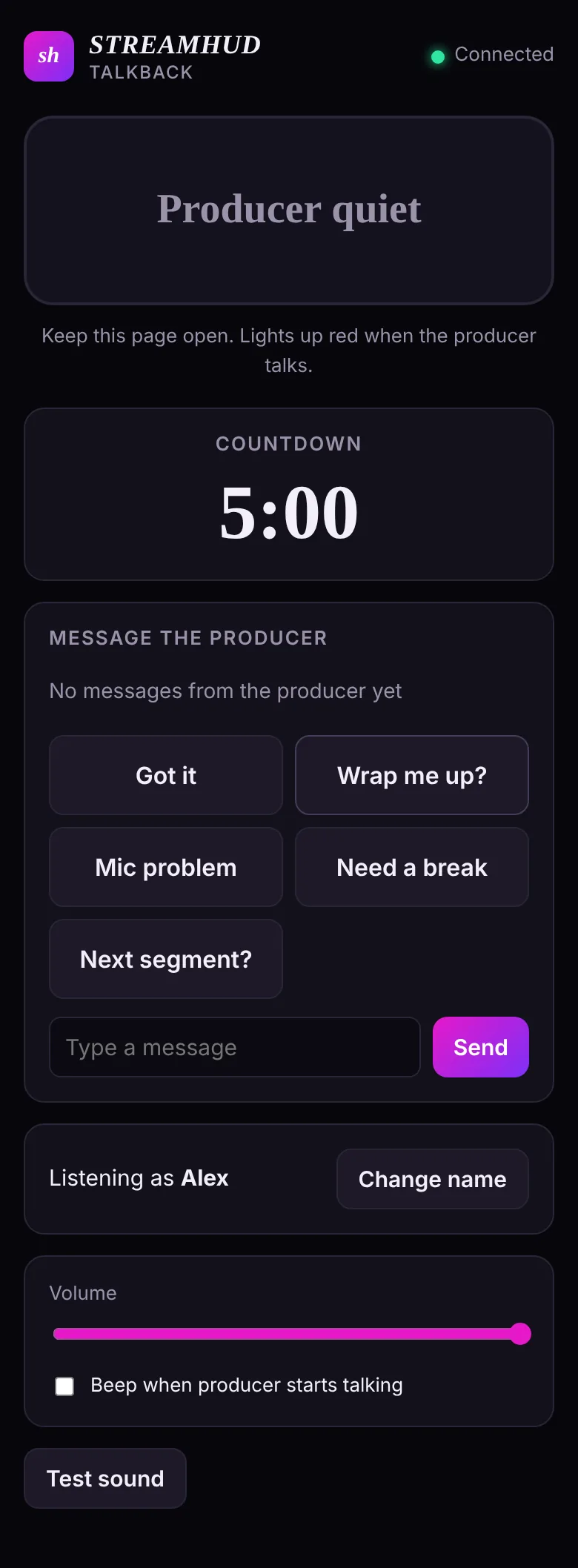
- Tap to start listening. Phones need one tap before they're allowed to play audio. They can type their name first so you know who's who, or skip it and use Change name later.
- Producer quiet / PRODUCER TALKING. The box lights up red whenever you talk (Android phones also buzz), so they know to listen.
- Countdown. Your canvas countdown appears here while it's set, shown in their own time zone too when you count to a clock time.
- Message the producer. One-tap replies (Got it, Wrap me up?, Mic problem, Need a break, Next segment?) or their own text. Your messages appear above them.
- Listening as … · Change name. They can fix their name any time without dropping the audio.
- Volume, Beep when producer starts talking, and Test sound.
The gear menu
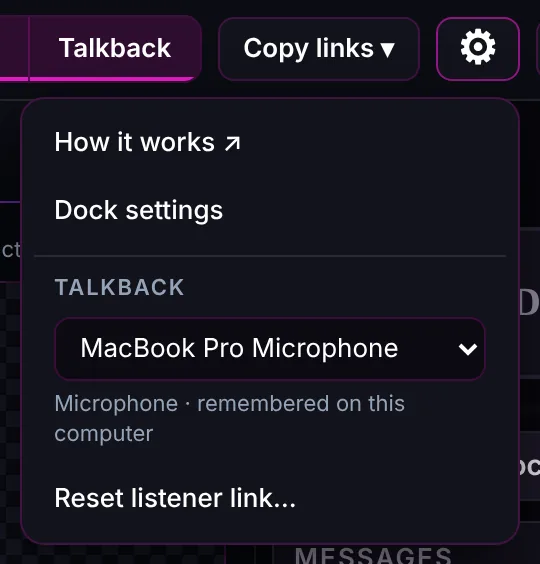
- How it works ↗ opens this guide.
- Dock settings chooses which canvas and which talkback room the dock uses, from the ones saved to your account, or makes new ones. Use it if you run more than one show.
- Microphone picks the mic your voice goes out on, and the dock remembers it on this computer. If that mic is unplugged next time, it uses your computer's default mic instead.
- Reset listener link… makes a brand-new listener link and disconnects everyone on the old one. Use it if the link got shared somewhere it shouldn't have. You'll need to send your host the new link.
Links for your stream
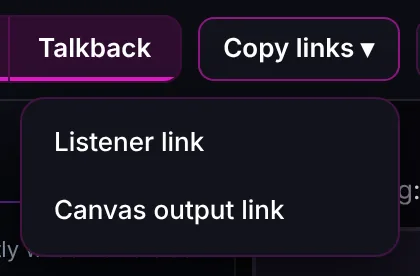
| Link | Who gets it | What it does |
|---|---|---|
| Listener link | Your host (and anyone else who should hear you) | Opens the listener page. Anyone with it can listen and message you, but can't talk to anyone else. |
| Canvas output link | Your streaming app | The clean, see-through page with only your live graphics on it. It has no buttons, and it can only display, never edit. |
Adding your canvas to Restream or OBS
- Copy the Canvas output link.
- Restream: add it as a browser source or web overlay by URL. OBS: in Sources press +, choose Browser, and paste it.
- Set the size to 1920 × 1080. Leave the background transparent: the page never paints one.
- Check the dock's output light. It turns green and reads Output connected within a few seconds.
On your phone
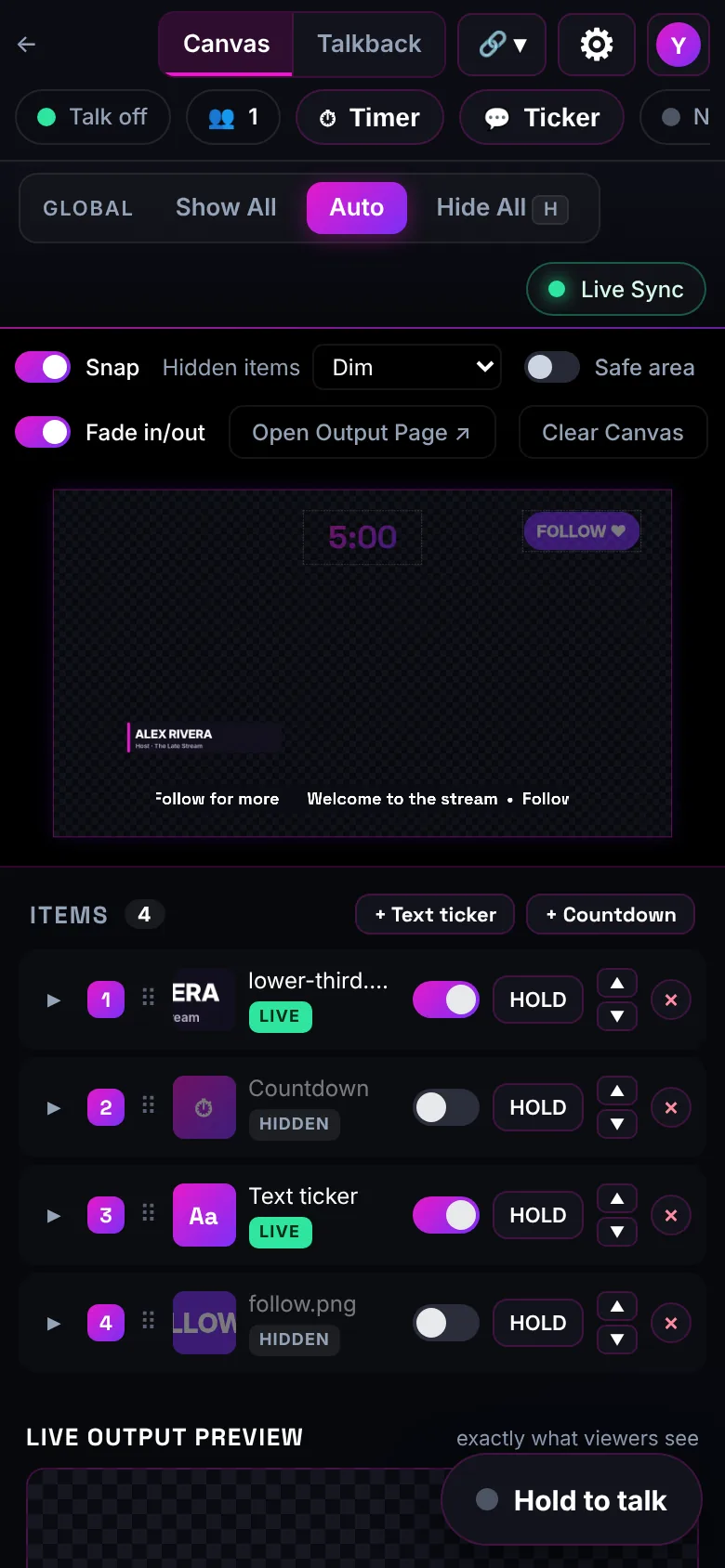
Open streamhud.live/dock and sign in. You get the same canvas and talkback room, rearranged for a small screen:
- Canvas and Talkback become tabs. Switching tabs on the phone never changes how the dock is laid out on your computer.
- The canvas stays pinned at the top while you scroll the items list under it, and you drag items with your finger.
- A Hold to talk button floats in the corner of the Canvas tab, so you can talk while you work the graphics.
- Copy links becomes a 🔗 icon. Swipe the row of chips sideways to reach them all.
Put it on your Home Screen (iPhone)
- Open streamhud.live/dock in Safari.
- Tap Share, then Add to Home Screen.
- Open it from the new Dock icon and sign in once. It opens full screen like an app from then on.
Keyboard shortcuts
| Key | What it does |
|---|---|
| Space (hold) | Talk to your host. Works anywhere in the dock except while you're typing in a text box. |
| 1 – 9 | Switch the 1st to 9th item in the list on or off. Click on the canvas side first so it has the keyboard. |
| H | Hide All. Press again to bring everything back. |
| Shift while rotating | Rotate in 15° steps. |
| Option / Alt + drag | Rotate the selected item by dragging inside it. |
| Cmd / Ctrl while dragging | Turn Snap off for that drag. |
| Esc | In a text box: leave it, so Space, 1–9 and H work again. Otherwise: close an open menu or pop-out. |
Typing in text boxes
While the cursor is in a text box (the ticker text, a saved message, a custom time, a message to your host) the shortcuts stand down. Space types a space and does not open your mic, and 1–9 and H type those characters instead of switching items. This is the same on the canvas side, in Talkback and in the dock itself.
When you're done typing, press Esc to leave the box (or click anywhere outside it). The shortcuts work again straight away, and Space talks. If you were holding Space to talk when you clicked into a box, letting go still closes your mic.
Troubleshooting
My graphics aren't showing on stream
- Is Global on Auto? Hide All hides everything. Look for the magenta banner and press Switch to Auto.
- Does the item say LIVE? If it says HIDDEN, switch it on. The preview box shows exactly what viewers see.
- Is the output light green? If it says No output, your streaming app hasn't loaded the canvas. Re-copy the Canvas output link, make sure that's the one in your browser source, and in OBS press Refresh cache of current page on the source.
- Is it the output link? It contains
output.html. A link witheditor.htmlor/dock/won't work as a source.
My host can't hear me
- Is their name next to the 👥 count? If not, they haven't opened the link or tapped Tap to start listening. If you reset the link, they need the new one.
- Does the talk light turn red when you hold Space? If not, you may still be typing in a box: press Esc first. Otherwise click on the dock so it has the keyboard. If the Talkback panel says it needs mic permission, press Allow microphone and allow it in your browser.
- Is it the right mic? Check the gear menu's Microphone. The panel's level meter moves when the mic hears you.
- On their side: phone volume up, earbud connected, page open and the screen unlocked. Test sound on their page checks their audio without you.
- Still nothing? Some strict networks (office or hotel Wi-Fi, some VPNs) block the direct audio connection. Try them on mobile data.
The countdown isn't on my host's page
The host page shows the countdown from the canvas your dock uses. Make sure the canvas has a countdown and it's set. It appears within a few seconds, without the host reloading.
Something looks different, or an update isn't showing
Your streaming app and any open browser tabs keep the version they loaded until they reload. Reload the dock and your editor tabs, then refresh the browser source: in Restream refresh or re-add it, and in OBS press Refresh cache of current page. Your canvas is saved on the server, so nothing is lost.
Something looks stuck
Reload the dock. Everything is saved on the server, so nothing is lost, and your stream keeps showing what's live while you reload.
StreamHud tools are free. Questions or ideas? Head back to streamhud.live.